Add a customer
In the Agent portal, open Customers, select the + button, enter at least a First Name, and select Save. Add birthdays and anniversaries under Important Dates to see them on Home.
Before you begin
- First Name is the only required field.
- Customers you add are yours. Other agents at your agency do not see them in their own list.
Steps
- In the Agent portal, select Customers.
- Select the + button (Add new customer).
- Enter First Name and, if you have them, Last Name, Nickname, Email and Phone.
- Optionally enter the address.
- To track a birthday or anniversary, select Add person under Important Dates. Enter a Name and Relationship, choose Birthday or Anniversary, and enter the date. The year is optional.
- Select Save.
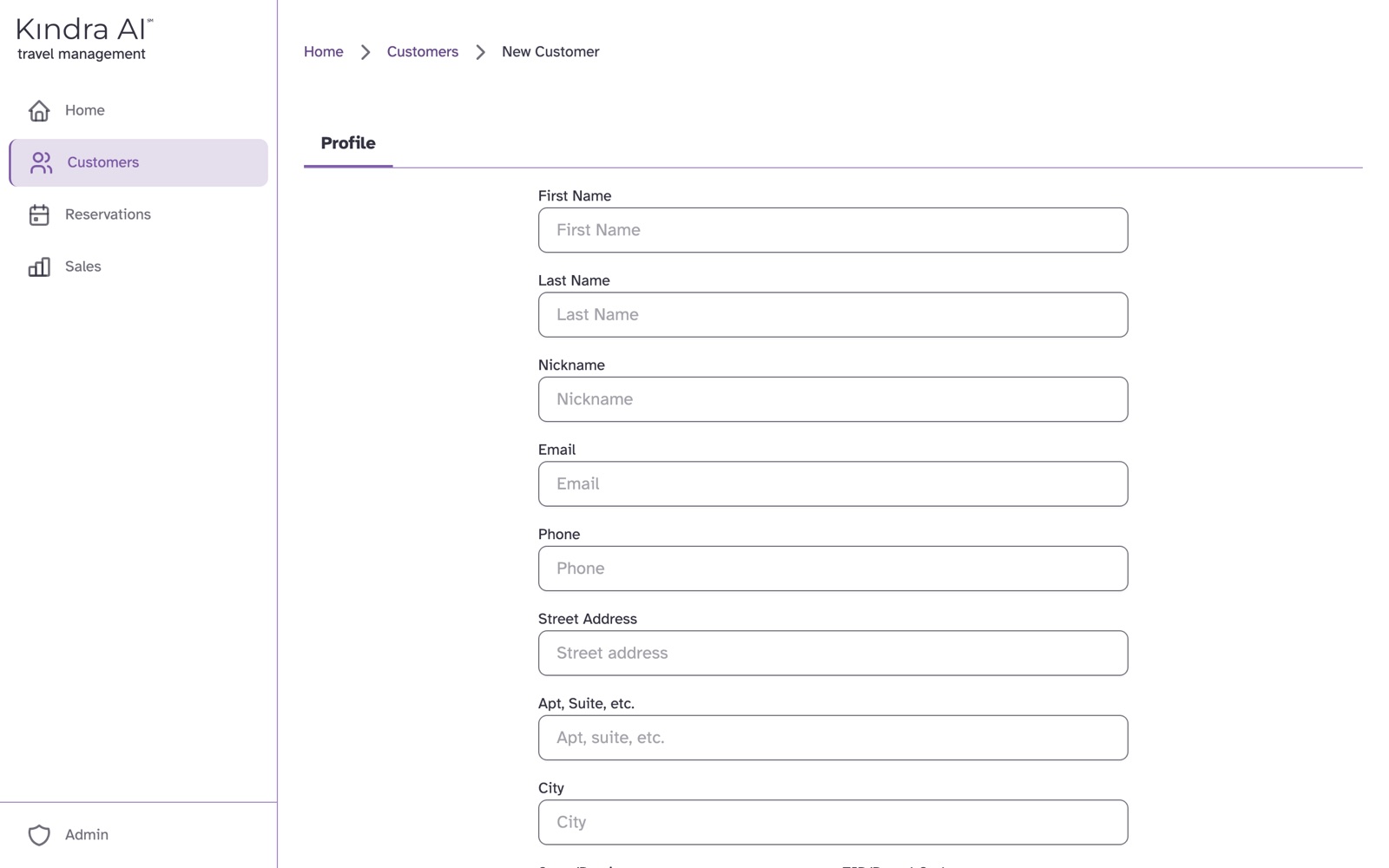
What you should see
The message Customer saved. The customer appears in Customers, and a Reservations tab appears on their page.
Birthdays and anniversaries you entered show on Home when the date approaches.
Find a customer later
Use the search box on Customers. It searches name, nickname and email. Enter several words to narrow the list: every word must match.
If something goes wrong
"Possible duplicate"
Kindra AI found one of your customers with the same email, the same phone, or a similar name. Select Edit followed by their name to open the existing customer, or Save Anyway to keep both.
An important date did not save
A row under Important Dates needs a Name. Rows without one are not kept.
Still stuck?
Email support@kindra.ai with what you were trying to do and what happened instead. A person answers.