Find and correct a booking
In the Admin portal, open Bookings, search by reservation number, customer, agent or product, open the booking, change the Sale or Commission fields, and select Save.
Before you begin
- You need the Admin role.
- Bookings shows every agent's reservations. Agents see only their own, under Reservations.
- Once an agent or upline has been paid for a booking, you cannot cancel or uncancel it.
Steps
- In the Admin portal, select Bookings.
- In the search box, enter a reservation number, customer, agent or product. Separate several terms with a space.
- Select the tab the booking is on. While you search, each tab shows how many bookings match.
- Select the booking.
- Under Sale, correct Reservation Number, Total Cost, Currency, Purpose or Booked Date.
- Under Commission, correct Gross Commission. The breakdown shows Save to see updated breakdown until you save.
- Select Save.
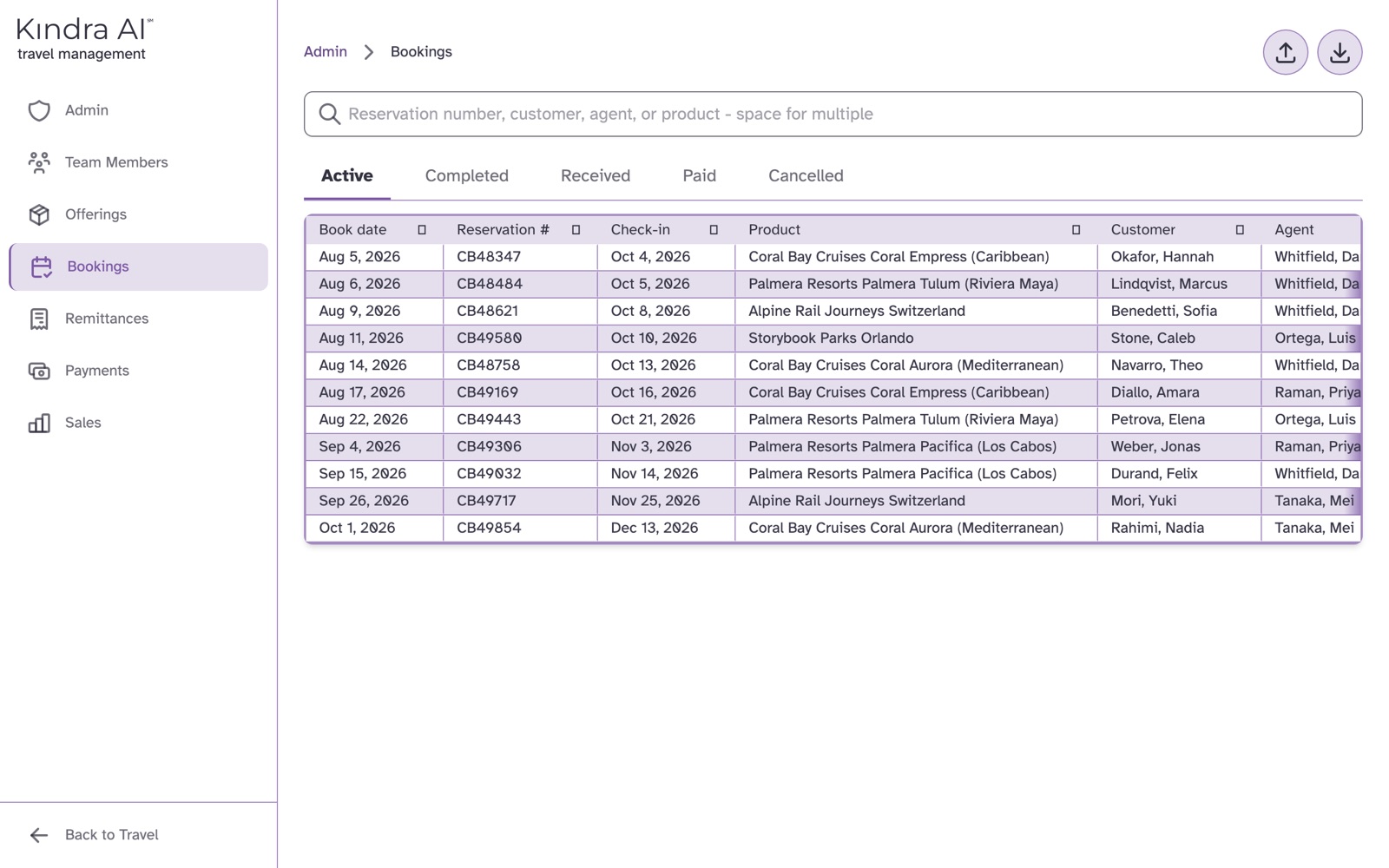
What each tab shows
| Tab | Shows |
|---|---|
| Active | Bookings that have not checked out |
| Completed | Checked out, commission not yet received from the supplier |
| Received | Commission received, agent not yet paid |
| Paid | Agent has been paid |
| Cancelled | Cancelled bookings |
What you should see
The message Booking updated successfully. Under Commission, the breakdown shows the Total, the agent's share, the upline's share if there is one, and Agency Net.
Below it, the commission timeline lists each Received from supplier and Paid to agent entry, ending with Received in full or how much has been received so far.
Export or import bookings
- Export to Excel downloads the bookings on the current tab, matching your search.
- Import from Excel takes an
.xlsxfile with a Reservation Number column. The upload starts as soon as you choose the file. Export first to get the right columns.
If something goes wrong
"Cannot change status: agent or upline has already been paid"
You tried to cancel or uncancel a booking after a payout. The payout has to be undone first, which is only possible on the day it was made. See Pay your team.
"This confirmation number already exists - you may have already entered this booking"
Another booking at your agency has that Reservation Number. Search for it to find the other booking.
"Net remittances received are negative"
The supplier has taken back more than it paid on this booking. A payment from the supplier may be missing. Do not process a payout until this is resolved.
"Recorded outside booking month"
The agent recorded this booking after the month it was booked in, so the late entry penalty applies. To waive it for this booking, select Remove penalty.
"Import failed: Not a bookings file (missing Reservation Number column)"
The file has no Reservation Number column. Export your bookings and use that file's columns.
Still stuck?
Email support@kindra.ai with what you were trying to do and what happened instead. A person answers.