Upload a commission statement
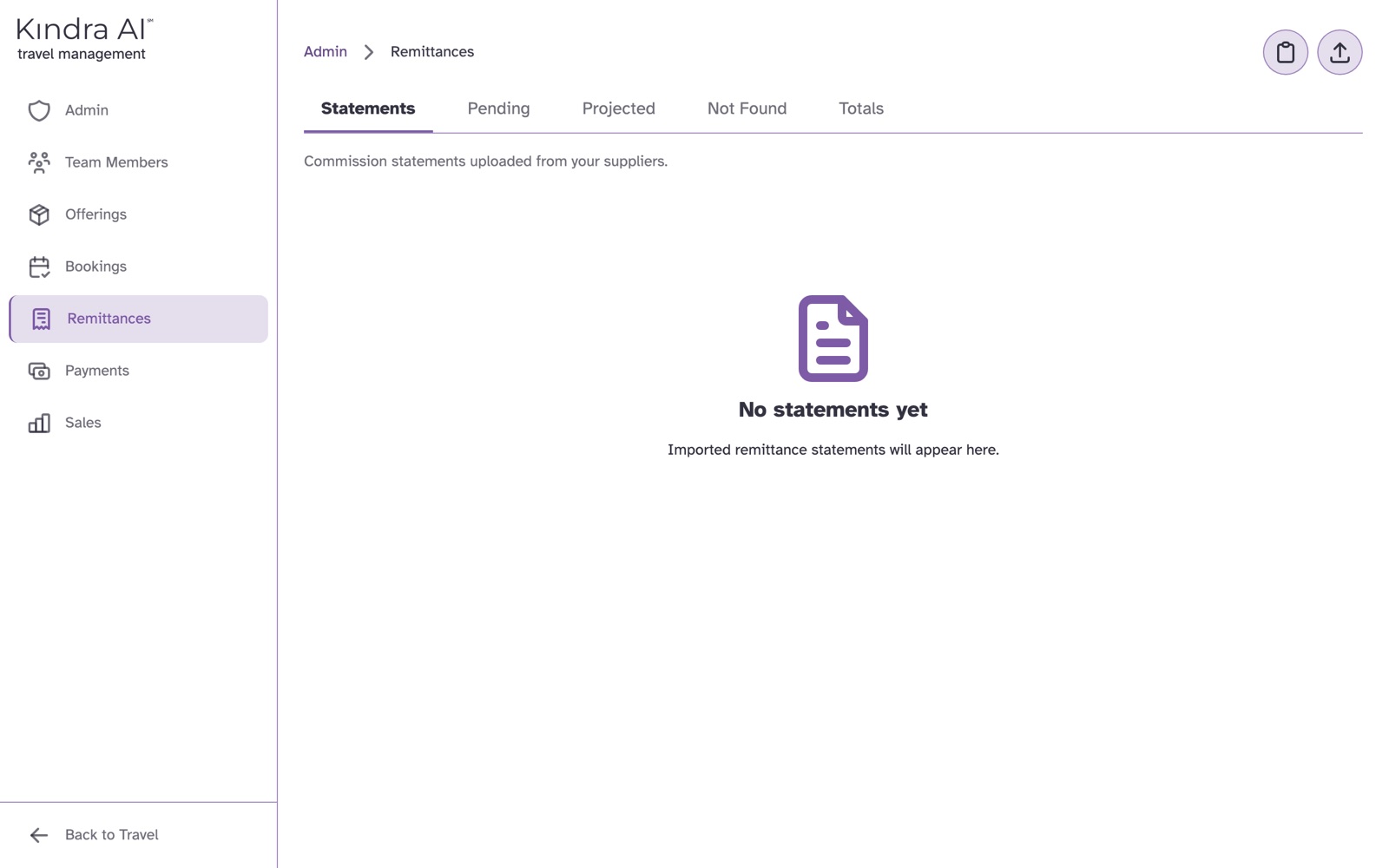
In the Admin portal, open Remittances and upload or paste the supplier's statement. Kindra AI reads it, matches each line to a booking, and shows what is ready. Select Receive Commissions to record it.
Before you begin
- You need the Admin role.
- Have the supplier's statement as a file (
.pdf,.xlsx,.csv,.txtor.html), or copy its text to your clipboard. - Lines match bookings by reservation number, so matching works best when your agents' reservations are already recorded.
Steps
- In the Admin portal, select Remittances. You land on the Statements tab.
- Add the statement, one of two ways:
- Select the upload button (Parse remittance statement) and choose the file. It uploads as soon as you choose it.
- Copy the statement text, then select the paste button (Paste from clipboard).
- Wait while the page shows Analyzing your document... and then Reconciling your statement... This can take a few minutes for large files. You can leave and come back: the statement is on the Statements tab with an Analyzing badge.
- Review each section of the result. The table below explains them.
- Select Receive Commissions.
The sections of a statement
| Section | What it means | What to do |
|---|---|---|
| Review Required | Clawbacks, lines not found, lines already settled, and zero amounts | Read each one. See Statement lines that were not found |
| Create Reservation | Lines with no booking yet that Kindra AI can create for you | Tick the ones to create. Their commission is recorded automatically |
| Ready to Record | Lines matched to a booking | Check the Receiving amount on each row and change it if needed |
| Already Recorded | Lines recorded from this statement earlier | Nothing |
What you should see
The message Recorded followed by the number of remittances. The statement's badge on the Statements tab changes from Review to Complete once every line is recorded.
A completed booking moves from the Completed tab to the Received tab under Bookings once its commission is received, and its commission becomes payable to the agent. See Pay your team.
If a statement's commission differs from the booking's Gross Commission, the booking is updated to the statement's figure.
Record a commission without a statement
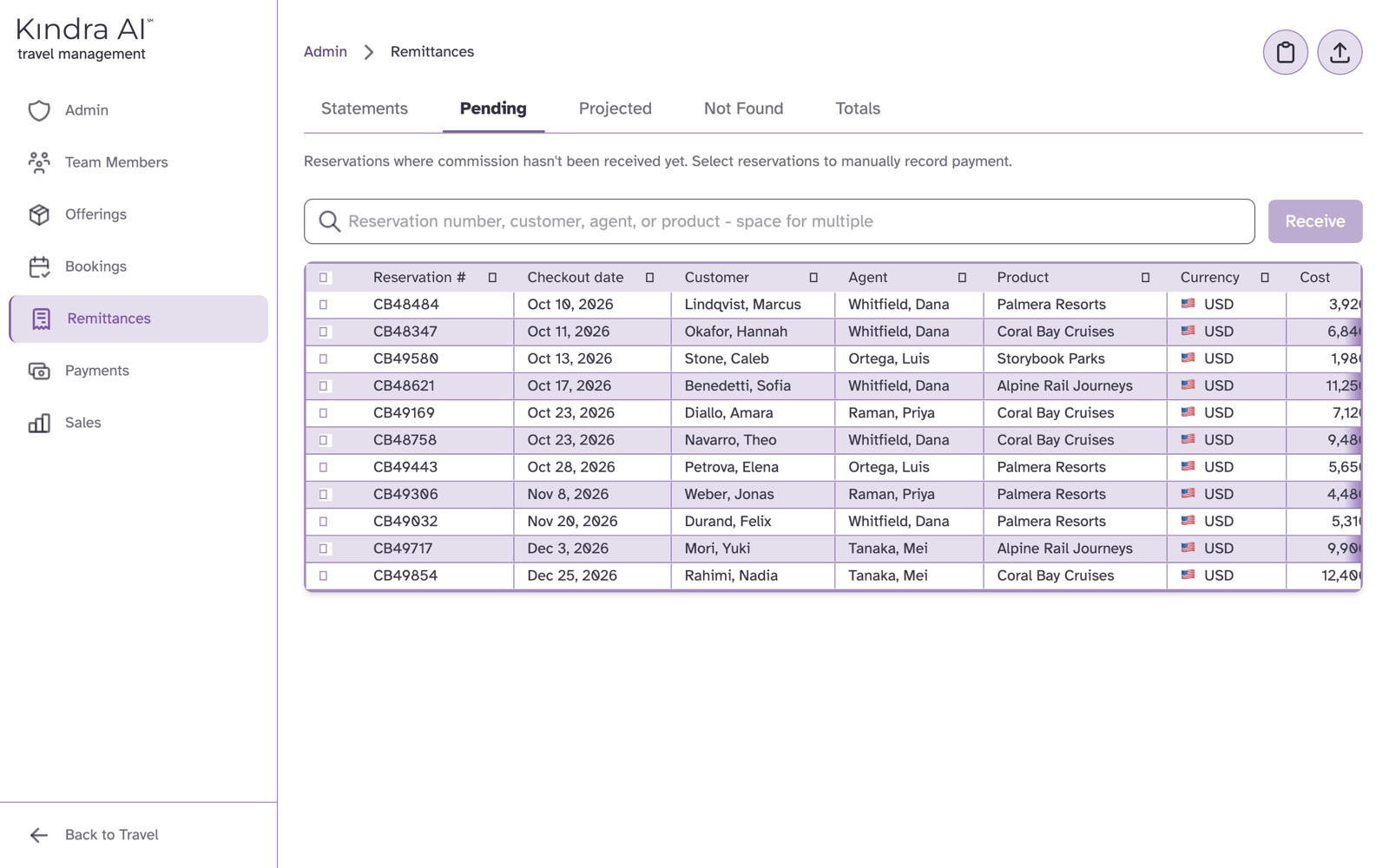
- On Remittances, select the Pending tab. It lists reservations where commission hasn't been received yet.
- Tick the reservations and select Receive.
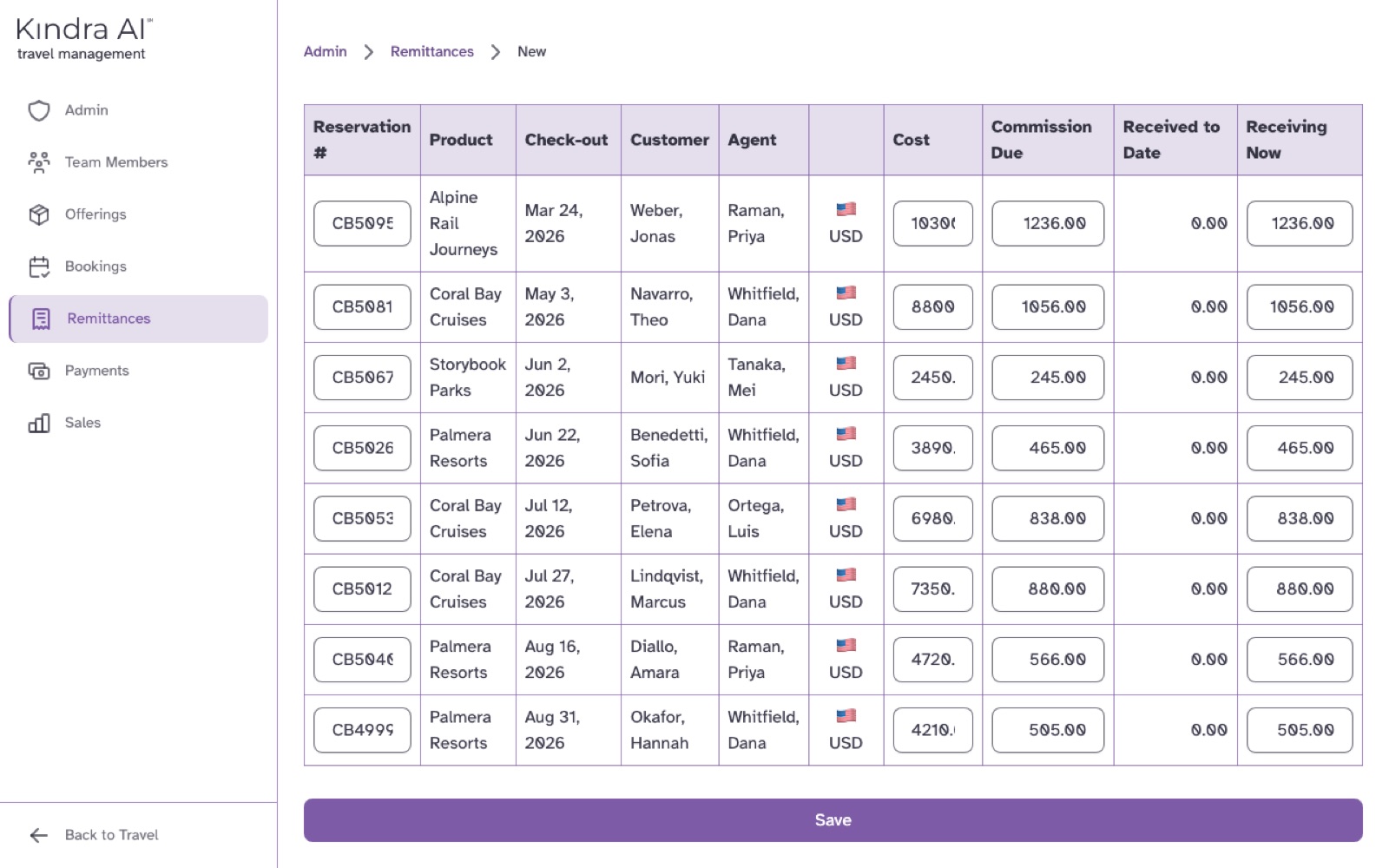
- Check Receiving Now on each row and select Save.
Large statements
When more than 100 lines are ready, the page shows them 100 at a time and the button reads Record All Commissions. It records every ready line in the background. It does not create reservations.
If something goes wrong
"We couldn't find any commission data"
Kindra AI could not read commission lines from the file. Select Try again. If it fails again, open the statement in another format (for example the spreadsheet instead of a scan) or paste its text.
"Connection issue"
Kindra AI could not reach its processing service. This is usually temporary. Select Try Again.
"Unsupported file type"
Upload a .pdf, .xlsx, .csv, .txt or .html file.
"Your clipboard is empty. Copy the text you want to import, then try again."
Copy the statement text first, then select the paste button.
"Your paste looks cut off before the end of the statement. Copy the whole statement, then try again."
Select all of the statement before copying, or upload the file instead.
"Cannot delete a statement with recorded remittances"
The trash icon only appears on a statement that has had nothing recorded from it.
Still stuck?
Email support@kindra.ai with what you were trying to do and what happened instead. A person answers.