Delist or delete an offering
Delist an offering to stop agents selecting it on new reservations while keeping every reservation already booked against it. You can only delete an offering that has no reservations.
Before you begin
- You need the Admin role.
- Delist is reversible. Delete is not.
| Delist | Delete | |
|---|---|---|
| New reservations can select it | No | No |
| Existing reservations | Unaffected | There must be none |
| Can be undone | Yes, with Relist | No |
Steps
Delist
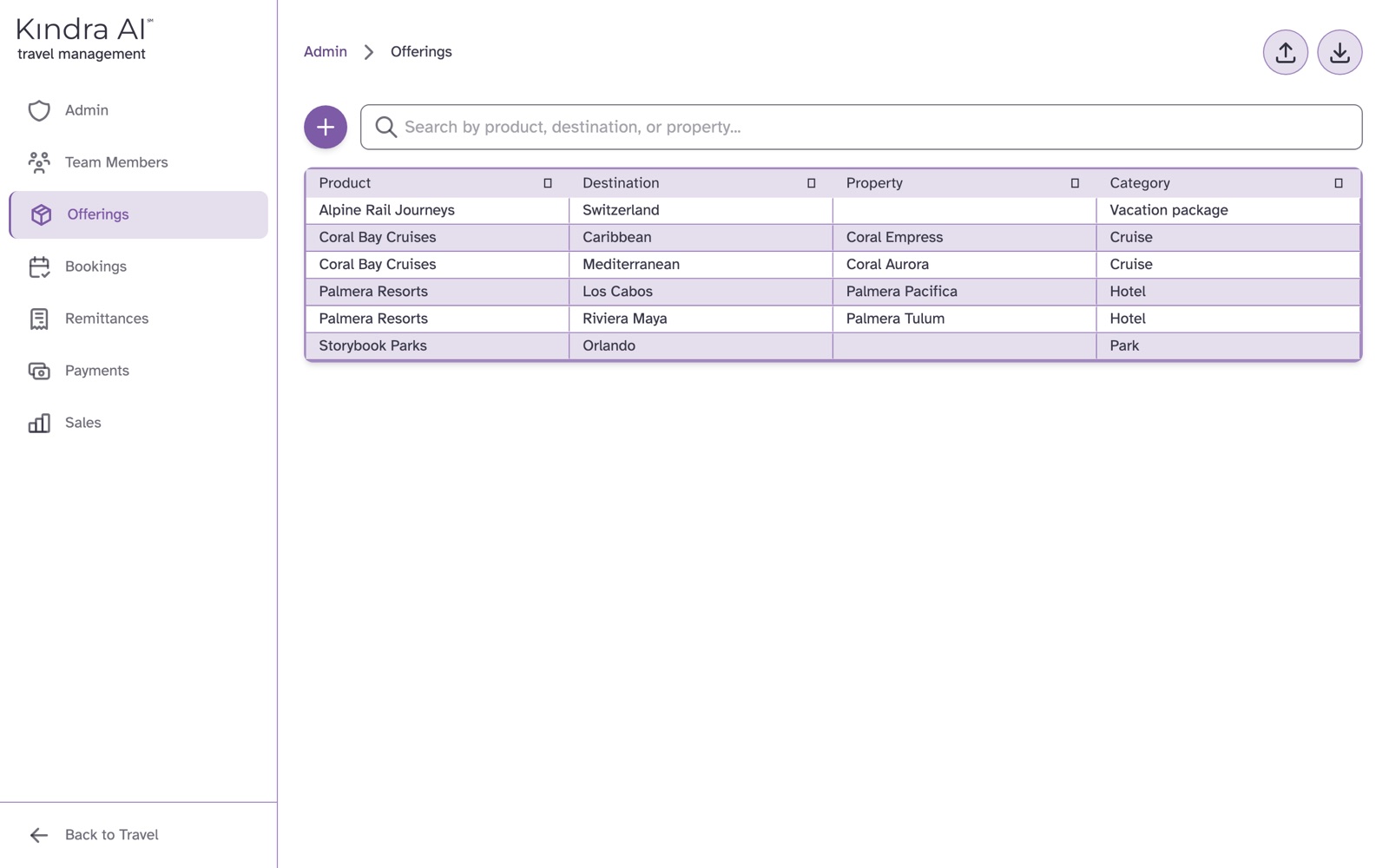
- In the Admin portal, select Offerings.
- Select the offering.
- Select Delist.
Relist
- Open the delisted offering.
- Select Relist.
Delete
- Open the offering.
- Select the trash icon in the header. It only appears when the offering has no reservations.
- Confirm Delete this offering?
What you should see
- After delisting: the message Offering delisted, and a notice on the offering that it was delisted on that date. New reservations can't select it. Reservations already booked against it are unaffected.
- After relisting: the message Offering relisted.
- After deleting: the message Offering deleted.
If something goes wrong
There is no trash icon
The offering has at least one reservation, so it cannot be deleted. Delist it instead.
Still stuck?
Email support@kindra.ai with what you were trying to do and what happened instead. A person answers.