Add an offering
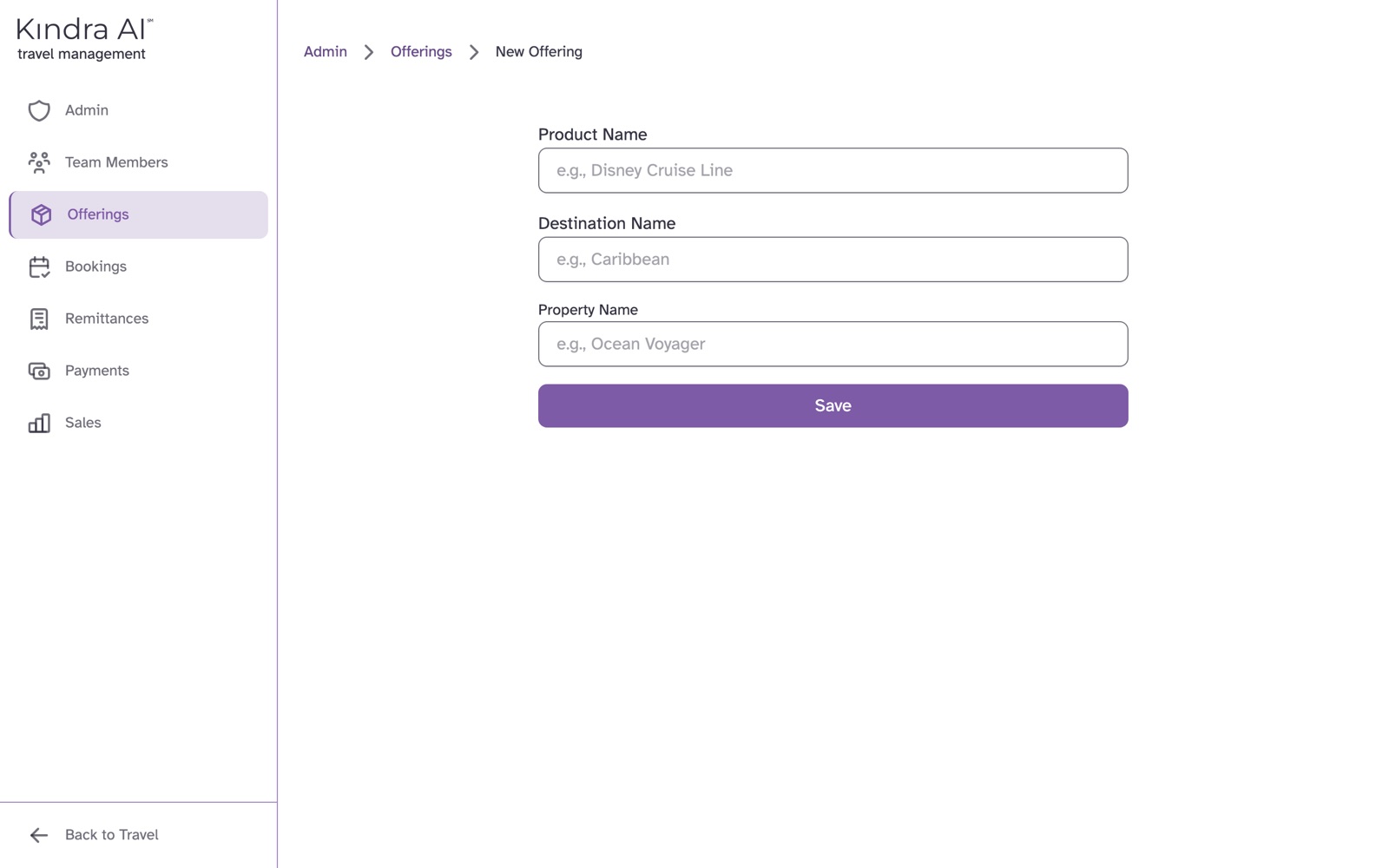
In the Admin portal, open Offerings, add a new offering, and enter its Product Name, plus a Destination Name and Property Name if it has them. Agents can then select it on a reservation.
Before you begin
- You need the Admin role.
- An offering is what an agent chooses when they record a reservation: a product, optionally narrowed to a destination and a property. For example, product "Disney Cruise Line", destination "Caribbean".
- The combination of product, destination and property must be unique in your agency.
Steps
- In the Admin portal, select Offerings.
- Select the + button (Add new offering).
- Enter the Product Name. Choose an existing product from the list, or enter a new one.
- If it applies, enter a Destination Name, then a Property Name. A property needs a destination.
- Wait for the rest of the form to appear. It shows once Kindra AI has confirmed that the offering does not exist yet.
- Choose a Category.
- Optionally add Notes, and the options agents can choose under Available Options: ticket types, dining options, add-on options and transportation options. Select Add item for each one.
- Select Save.
What you should see
The message Offering created. The offering appears on Offerings, and agents can select it on new reservations.
Add many at once
On Offerings, select Import from Excel and choose an .xlsx file. Select Export to Excel first to get a file with the right columns.
Rows that match an existing product, destination and property update that offering. Rows with no product are skipped.
If something goes wrong
"… offering already exists"
An offering with the same product, destination and property is already there. Select Edit existing offering → to open it.
"Please add a destination before setting a property."
You entered a Property Name without a Destination Name. Add the destination first.
Still stuck?
Email support@kindra.ai with what you were trying to do and what happened instead. A person answers.