Pay your team
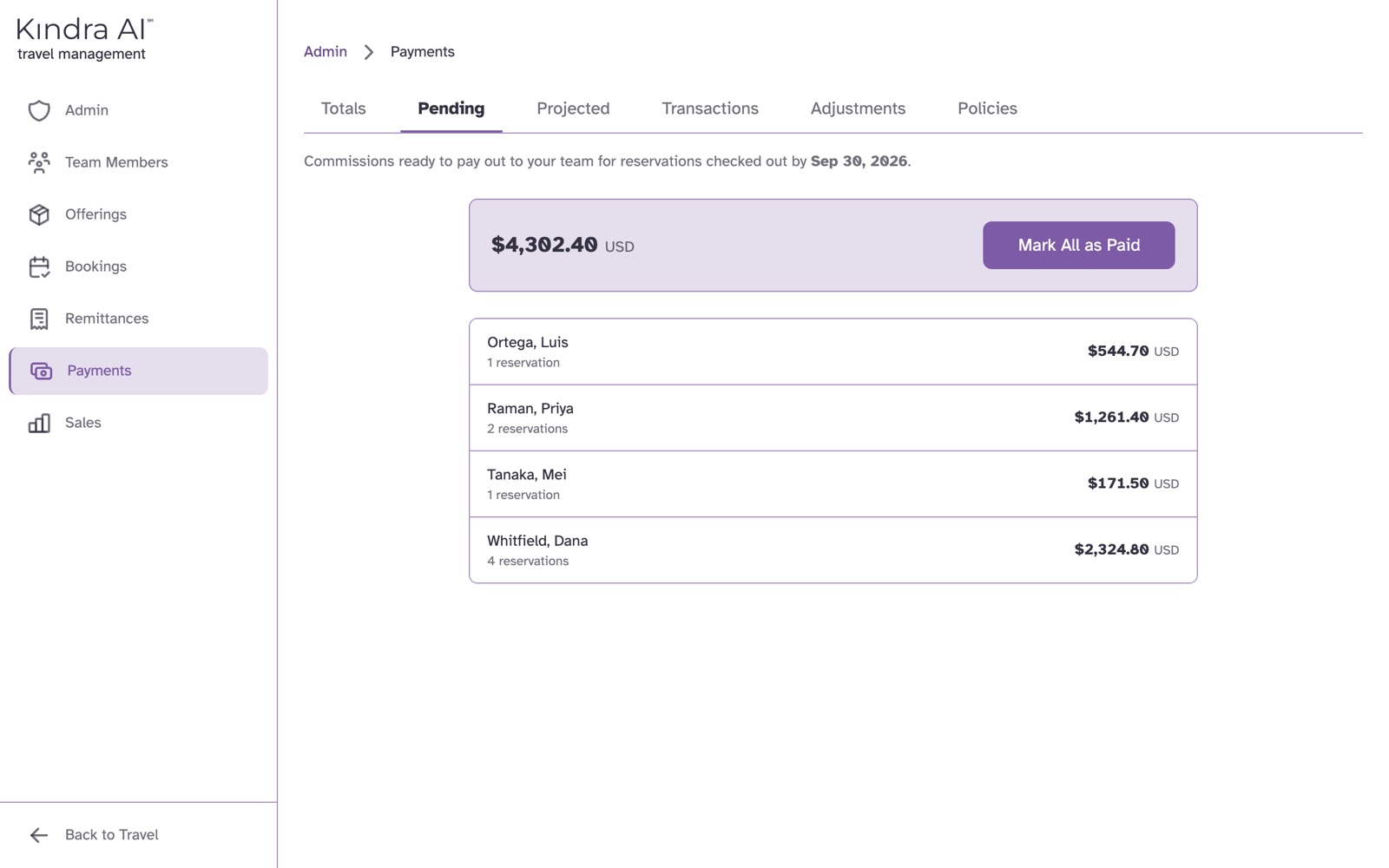
In the Admin portal, open Payments. The Pending tab lists what each team member is owed. Pay them outside Kindra AI, then select Mark All as Paid, or open one person and select Mark as Paid.
Before you begin
- You need the Admin role.
- Kindra AI does not move money. It records that you paid. Send the payment from your bank or payroll first.
- What counts as ready to pay depends on your Payout Basis and Payment Period. See Payment policies.
- On a pay-on-collection agency, a commission is only ready after you have recorded it from a supplier statement.
Steps
Pay everyone
- In the Admin portal, select Payments, then the Pending tab.
- Read the list. Each row is a team member with their reservations, adjustments and the amount owed per currency.
- If you owe amounts in more than one currency, choose the currency under Pay all in and enter a rate for each currency being converted.
- Select Mark All as Paid.
Pay one person
- On the Pending tab, select the team member.
- Review their reservations, adjustments and service charge bonuses.
- If needed, choose a currency under Pay in and enter the Rate.
- Select Mark as Paid.
What you should see
The message Bulk payment recorded or Payment recorded, with the number of items.
The payment appears on the Transactions tab as a card for that date and currency. Each agent sees it on their own Paid tab under Sales. See Sales, Earned, Owed and Paid.
Watch: from commission received to ready to pay
- Under Remittances, on the Pending tab, the admin ticks eight reservations and selects Receive.
- The admin checks the amounts and selects Save. The message reads Recorded 8 remittances.
- Under Payments, the Pending tab now lists each team member with the amount owed.
Undo a payment
You can undo a payment on the day it was made.
- One person: on Transactions, open the person's payment and select Undo payment.
- Everyone paid that day: on Transactions, open today's card and select the Undo button, which shows how many payments it will undo.
The items return to Pending.
Download a payment list
On Transactions, select the download icon on a card for that date's payments, or the icon in the header for the whole year. The Excel file has one row per person with the amount paid.
On the Totals tab, switch between Annual and Monthly and export commission totals paid to each team member for a year.
If something goes wrong
"No pending payments"
Nothing is ready to pay. Payments appear here once commissions are received. Check the Projected tab for what is coming.
"Exchange rate required"
You are paying in a different currency than the commission was earned in. Enter the Rate.
"Exchange rate cannot be 1.0"
A conversion between two different currencies needs a real rate. Enter the rate you used.
"No payments recorded" with "below the minimum payout amount"
Every amount was under your agency's Minimum Payout Amounts. Those amounts stay on Pending until they add up to the minimum. See Payment policies.
"Payments can only be undone on the day they were made."
The payment is from an earlier day. To correct it, add a bonus or deduction for the difference.
"Payment settings changed since this page loaded. Please reload and resubmit."
Someone changed a policy or a team member's settings while the page was open. Reload the page and select Mark All as Paid again.
Still stuck?
Email support@kindra.ai with what you were trying to do and what happened instead. A person answers.