Add a team member
In the Admin portal, open Team Members, add a new team member, enter their email and roles, and select Create Team Member. Adding a team member creates a prorated adjustment on your next invoice.
Before you begin
- You need the Admin role.
- Have the person's email address. It cannot be changed later.
- Adding or archiving team members creates a prorated adjustment on the next invoice.
Steps
- In the Admin portal, select Team Members.
- Select the + button (Add new team member).
- Enter their Email. If the person already uses Kindra AI, they are added to this workspace.
- Enter First Name, Last Name and, if you use them, Phone and Agent ID.
- Under Roles, tick Agent, Admin, Assistant, or a combination. See Team member roles.
- Set Commission %. It starts at 70.
- If someone earns an override on this person's sales, choose them under Upline and set Override %.
- Select Create Team Member.
What you should see
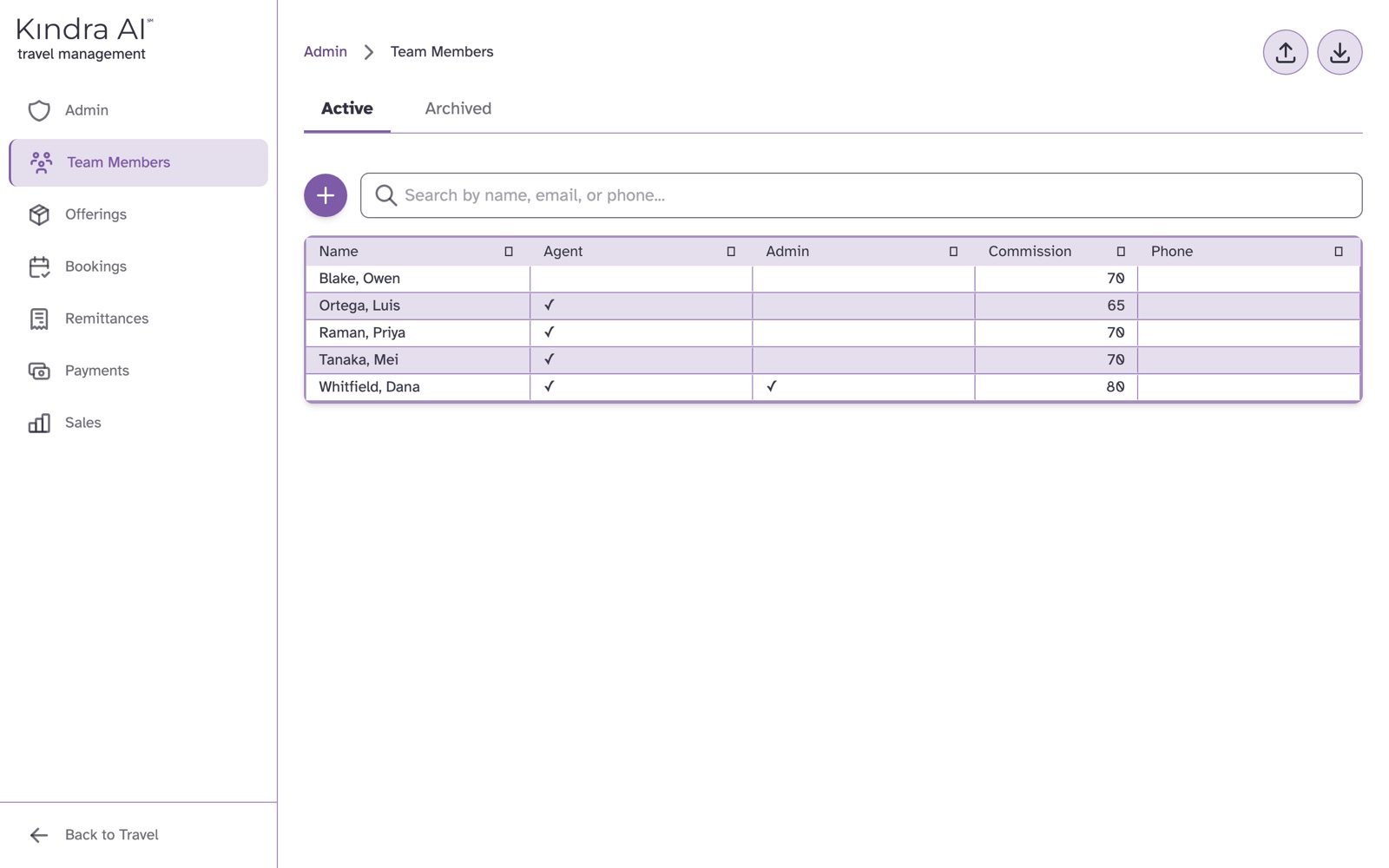
The message Team member created, and the new team member's Profile tab. They now appear on the Active tab of Team Members.
They can sign in with the email you entered.
Add many at once
On Team Members, select Import from Excel and choose an .xlsx file. The upload starts as soon as you choose the file. The file needs an Email column. To get the right columns, select Export to Excel first and use that file as your template.
Rows whose email already belongs to a team member are skipped, not updated. A blank role becomes Agent and a blank commission becomes 70.
If something goes wrong
"Email is required"
The Email field is empty. Enter the person's email address.
"A team member with this email already exists"
That email is already a team member at your agency. Search for them on Team Members. If they were archived, look on the Archived tab.
"Please select at least one role for this team member"
Tick at least one box under Roles.
"Import failed: Not a team members file (missing Email column)"
The file has no Email column. Export your team members to Excel and use that file's columns.
Still stuck?
Email support@kindra.ai with what you were trying to do and what happened instead. A person answers.