Export your agency's data
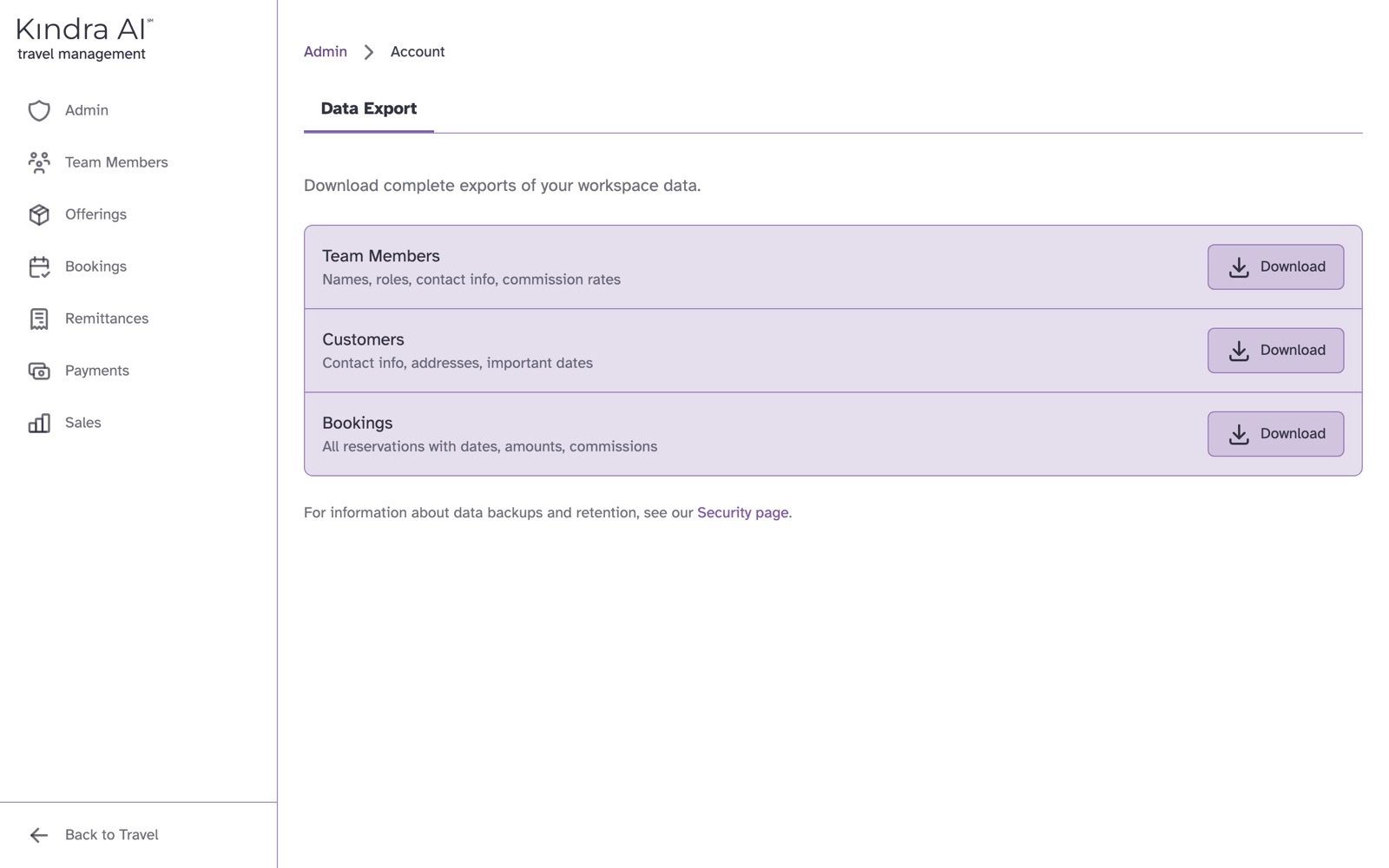
In the Admin portal, open Admin, select the Data Export tab, and select Download next to Team Members, Customers or Bookings. Each one downloads an Excel file.
Before you begin
- You need the Admin role.
- Exports cover every team member's records, across your whole agency.
Steps
- In the Admin portal, select Admin.
- Select the Data Export tab.
- Select Download next to the export you want.
| Export | What it contains |
|---|---|
| Team Members | Names, roles, contact info, commission rates |
| Customers | Contact info, addresses, important dates |
| Bookings | All reservations with dates, amounts, commissions |
What you should see
An Excel (.xlsx) file downloads. The team members file is named with today's date, for example 2026-10-04_team_members.xlsx.
The team members file has these columns: First Name, Last Name, Email, Phone, Agent ID, Roles, Commission Percent, Upline Email, Override Percent, Hire Date, Birth Date, Time Zone, Status, Social Media Links.
For data backups and retention, see the Security page.
Still stuck?
Email support@kindra.ai with what you were trying to do and what happened instead. A person answers.