Add a reservation
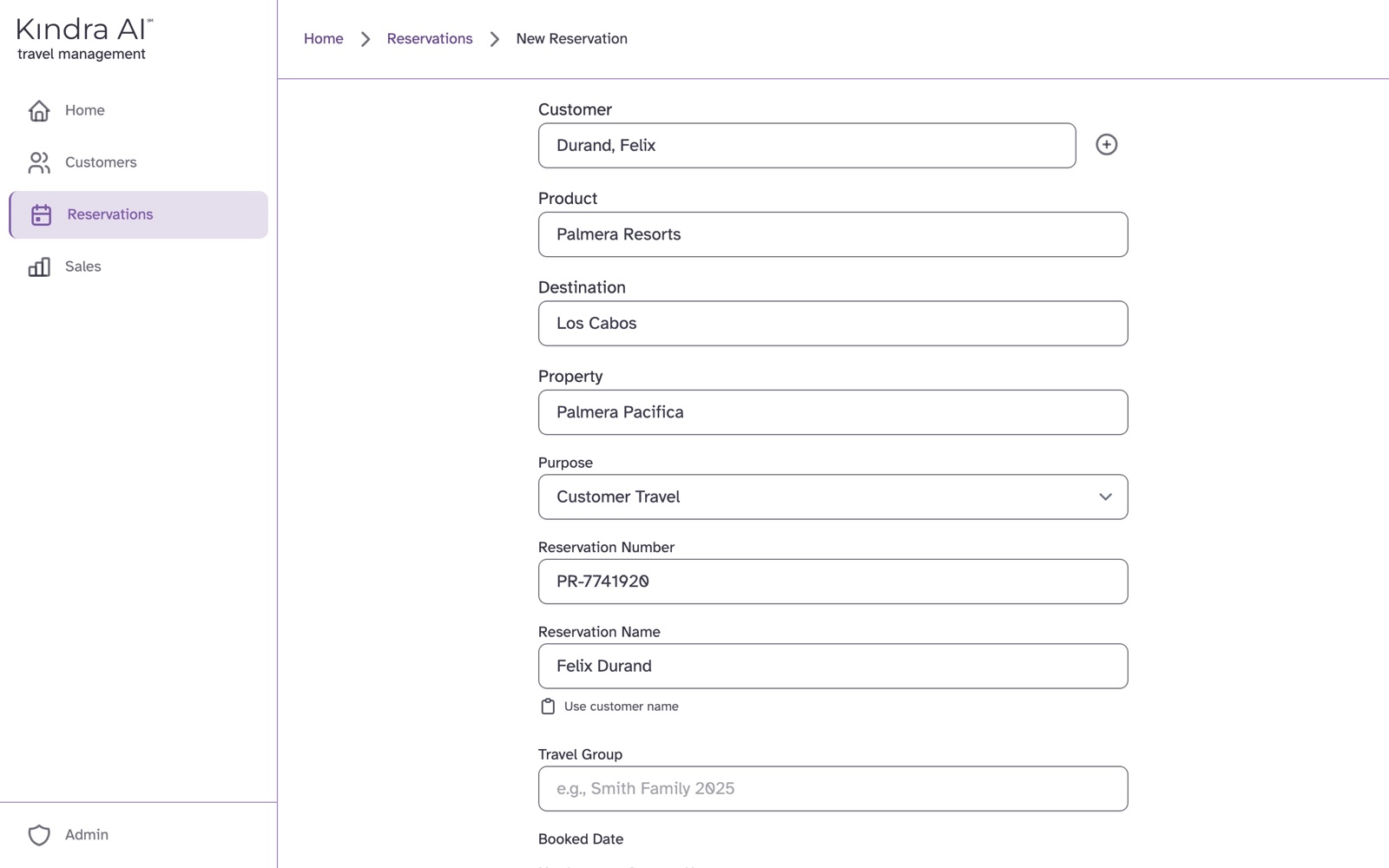
In the Agent portal, open Reservations, select the + button, choose the customer and the product, enter the supplier's confirmation number, dates, total cost and gross commission, and select Save.
Before you begin
- The customer must exist. You can add one from the reservation form with the + next to Customer. See Add a customer.
- The product must be one of your agency's offerings. If it is missing, ask an admin to add an offering.
- Have the supplier's confirmation number. Each one can only be recorded once at your agency.
Steps
- In the Agent portal, select Reservations.
- Select the + button (Add new reservation).
- Under Customer, search for and select the customer.
- Under Product, search for and select the product. If the product has them, choose a Destination and then a Property. The rest of the form appears once the offering is chosen.
- Leave Purpose on Customer Travel, unless this is Agent Personal Travel or Agency Travel.
- Enter the Reservation Number: the confirmation number from your supplier.
- Enter the Booked Date, Check-in and Check-out.
- Choose the Currency and enter the Total Reservation Cost: the total amount charged to the customer.
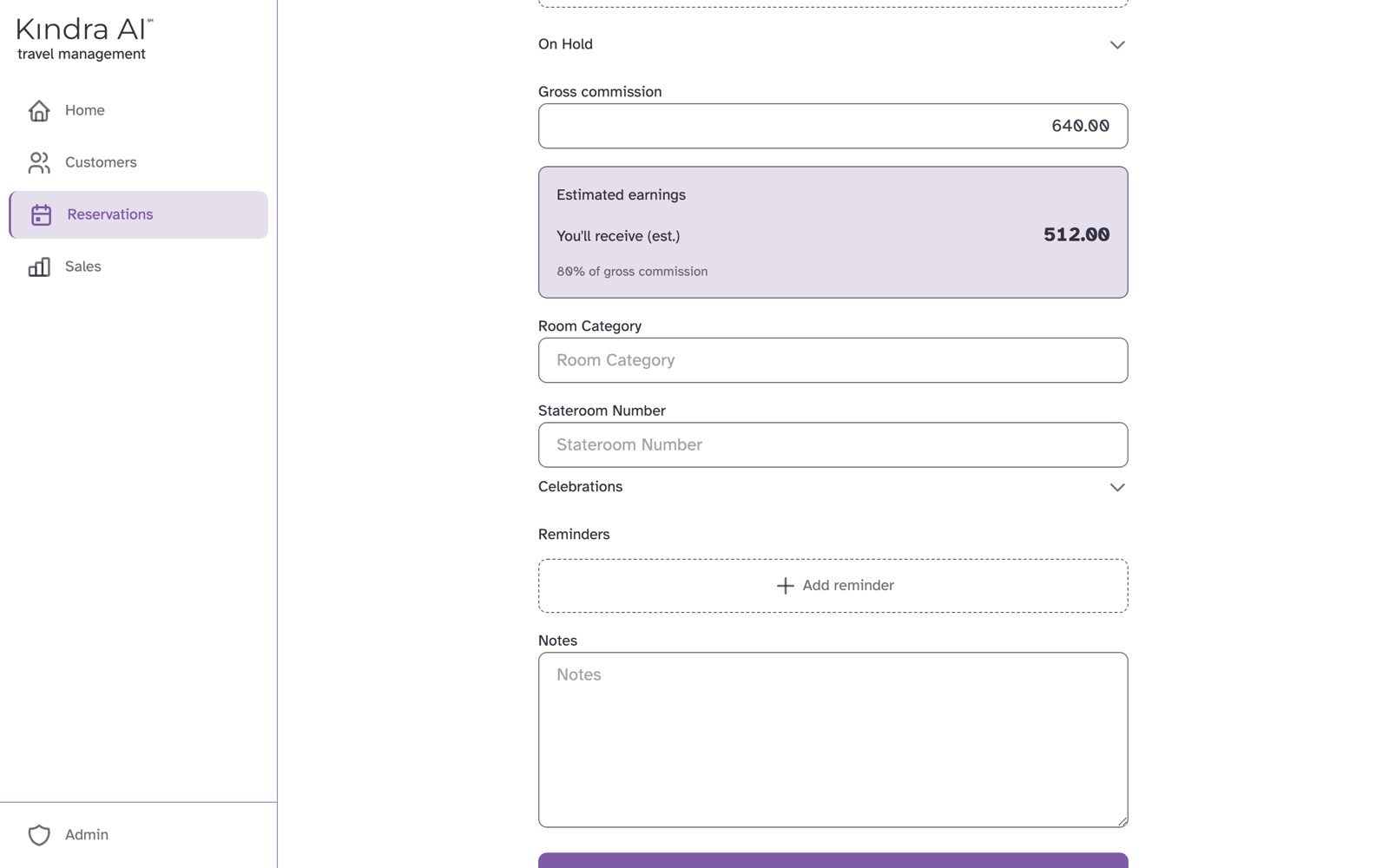
- Enter the Gross commission: the total commission the supplier pays your agency for this booking.
- Select Save.
Optional, on the same form:
- Final Payment Due Date, and Customer Payments with Add payment, to track what the customer has paid.
- On Hold, with a Deposit Due Date, for a booking waiting on its deposit.
- Reminders, each a short label and a number of days before check-in. They show on Home.
What you should see
The message Reservation saved. The reservation appears on the Active tab of Reservations, or on Hold if it has a deposit due and no deposit paid date.
While you fill in the form, Estimated earnings shows You'll receive (est.) and your percentage of the gross commission.
If something goes wrong
"No offerings available"
Your agency has no offerings yet. Ask an admin to add an offering.
"This confirmation number already exists - you may have already entered this booking"
That Reservation Number is already recorded at your agency, by you or by another agent. Search for it on Reservations. If it is not in your list, ask an admin to look on Bookings.
"Enter the confirmation number from your supplier"
Reservation Number is empty.
"Select which customer this reservation is for"
Customer is empty. Search for and select a customer.
"Check-out can't be before check-in"
Correct the Check-in or Check-out date.
"Enter the total agency commission"
Gross commission is empty. Enter the total commission the supplier pays your agency, before your split.
"Recorded outside booking month"
You recorded the reservation after the month it was booked in, and your agency applies a late entry penalty. The reservation is saved. The penalty shows under Estimated earnings as Late penalty. See Payment policies.
Still stuck?
Email support@kindra.ai with what you were trying to do and what happened instead. A person answers.